OCA-1
OCA-1 turns the M-VAVE FM-1 into an ocarina. It plays one clear note at a time, close to a pure tone, so a game listening through a microphone hears the notes you play. That includes the Nintendo Switch 2 version of Ocarina of Time, which listens for its songs through the console's microphone.
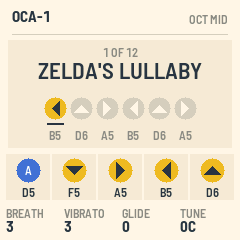
The songbook has the game's twelve songs, written with the game's five buttons. The keys you need light up in turn, PLAY plays a song for you, and OCA-1 names any song you finish.
1Install
The emulator runs the same code in the browser, with sound. You can play it with the mouse, a touch screen or the computer keyboard.
To install from the browser, open the installer in Chrome or Edge with the FM-1 connected by USB, and press Install. The browser asks once to allow MIDI: allow it. Don't unplug the cable while it writes.
To install from a terminal, run python3 tools/fm1_install.py oca-VERSION.fwsc.
The installer's last section puts M-VAVE's own firmware back.
2Playing a song to the game
- In the game, take out the ocarina and choose to play by sound.
- Hold the FM-1 near the console, with the speaker towards it, and turn MASTER up.
- Play the song on the lit keys, or press PLAY to have OCA-1 play it.
The game's five buttons are five white keys in the middle of the keyboard:
| Button | Note | Key |
|---|---|---|
| A | D5 | the D in the middle |
| Down | F5 | the F above it |
| Right | A5 | the A above that |
| Left | B5 | the B next to it |
| Up | D6 | the D at the top of the five |
These keys glow all the time. The next key of the songbook's song blinks.
If the game misses notes, play each one a little longer, bring the FM-1 closer, or turn KNOB 1 (BREATH) down for a purer tone. KNOB 4 (TUNE) moves every note up to 50 cents sharp or flat.
3The screen
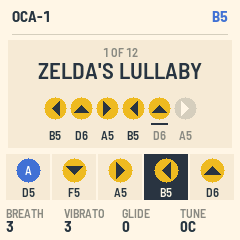
| Part | What it shows |
|---|---|
| Header | OCA-1 and the octave, or the note sounding. A message for a moment after a change. |
| Songbook card | The song's place in the book, its name and its buttons, with each button's note below it. Buttons played so far are in colour, and the next one is underlined. |
| Five notes | The game's buttons and their notes. The note sounding is dark. |
| Knobs | BREATH, VIBRATO, GLIDE and TUNE. |
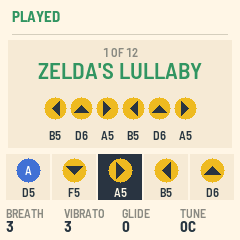
When the last notes you played make one of the twelve songs, the header says PLAYED and the song's card turns green, whichever song the songbook shows.
4Controls
| Control | What it does |
|---|---|
| Keys | Play the ocarina, one note at a time. The newest key sounds. Let go of it and the key held before it sounds again. |
| PRESET or SELECT | Turn the songbook's pages. |
| PLAY | Play the songbook's song. Press it again to stop. |
| OCT− · OCT+ | The octave: low, middle or high. The game's notes are in the middle octave. |
| KNOB 1 · BREATH | The air in the tone, 0 to 10. |
| KNOB 2 · VIBRATO | The vibrato on a held note, 0 to 10. |
| KNOB 3 · GLIDE | The slide from one note to the next while a key is still held, 0 to 10. |
| KNOB 4 · TUNE | The tuning, from 50 cents flat to 50 cents sharp. |
| MASTER | The volume. |
| SAVE | Save the settings. SAVE is lit while there are changes to save. |
5Saving
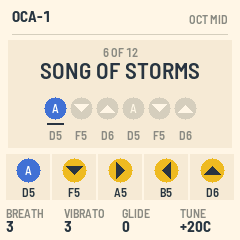
SAVE keeps the octave, the songbook's page and the four knobs. They come back the next time the FM-1 starts.
6MIDI and audio
The keys send their notes over USB on channel 1. Notes from USB or the TRS input play the ocarina too.
Over USB the FM-1 is also an audio device. A computer can record OCA-1, and play its own sound through the FM-1.
7The screen reader
OCA-1 tells the FM-1 Screen Reader what its screen shows. It reads each song as its buttons, names each song you play, and reads the knobs as you turn them.