FoMni-1
FoMni-1 turns your M-VAVE FM-1 into a chord harp, inspired by the Suzuki Omnichord. Pick a chord on the black keys, run a finger across the white keys, and it rings out. Under the strings, an organ-like chord and a bass hold the harmony, and the OM-84's ten rhythms can play them in time.
Version 0.5. You install and remove it the same way as Felucca and
X0X, and the installer can always put M-VAVE's own firmware back. Install at your own risk.
Playing
| White keys | The strum plate. Each key plucks one string of the chord. As on the Omnichord, the keys go root, third and fifth, five times up, folded into an F#–F window, with one more root on top. Strings that are still ringing keep their notes when you change chords. To have them move to the new chord's notes, as on the Omnichord, set Strings to Follow on the Setup page. |
|---|---|
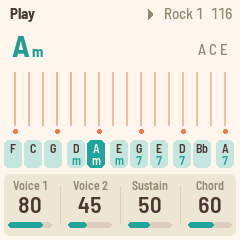
| Black keys | The chord buttons: F C G, Dm Am, Em G7 E7, D7 Bb, A7. Hold ENV for the minor, LFO for the 7th, or both for the m7. To change any of them, use the Chords page (SEL). |
| PLAY · REC | PLAY starts and stops the rhythm. REC turns on sync start, so the rhythm waits for your first chord. |
| ARP | Turns on chord hold, so the chord keeps playing after you let go. |
| OCT− · OCT+ | Move the strum plate down or up an octave. |
| SELECT | Sets the tempo. |
| ALGORITHM | Picks the rhythm. |
| PRESETS | Transposes, from −6 to +6. |
| KNOB 1–4 | Set the four values on the screen. The pages below list them. |
| SAVE | Saves your chords and settings. Until you save, a dot at the top of the screen shows there are changes, and switching off goes back to what you saved last. |
The pages
Each page puts four values on KNOB 1–4. Press EDIT to step through the pages.
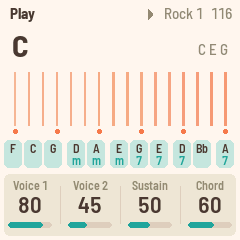
- The Play page (HOME) has Voice 1, Voice 2, Sustain and Chord level.
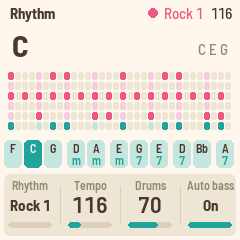
- The Rhythm page (SEQ) has Rhythm, Tempo, Drums level and Auto bass. With Auto bass on, the bass and chord play in time with the rhythm.
- The Sound page (FX) has Reverb, how much of the strings go to the reverb; Space, the plate's size; Width; and Chord rev, how much of the chord and bass go to the reverb. The drums stay dry.
- On the Chords page (SEL), you can change the chord on any black key. Press the key, then turn Root (KNOB 1) and Type (KNOB 2). KNOB 3 and 4 set Transpose and Octave.
- The Setup page (GLO) has Tune, MIDI out, Lights and Strings. With Lights on, the keys light up and the unlit buttons glow dimly so you can find them. With Keys, only the keys light. Off turns the lights off. Strings sets what ringing strings do when you change chords. With Ring, they keep their notes. With Follow, they move to the new chord's notes and keep ringing, as on the Omnichord.
MIDI
MIDI comes in over USB and the TRS jack, and goes out over USB. The FM-1's jack is input only.
- Notes coming in on channel 1 pluck the nearest string.
- Play a chord on a keyboard on channel 2, and it becomes the chord, as if you'd pressed a black key.
- Notes on channel 3 work like the FM-1's own keys, from F3 to G5: a white key's note plucks its string, and a black key's note holds its chord button until the note ends. A foot controller can change the chords this way.
- When MIDI clock comes in, the rhythm follows it, along with start and stop. The screen shows EXT for the tempo.
- MIDI out is on by default, and you can turn it off on the Setup page. The strings go out on channel 1, the chord on 2, the bass on 3 and the drums on 10. When the rhythm runs on its own tempo, FoMni-1 also sends clock, start and stop.
Screen reader
FoMni-1 can tell a screen reader what its screen shows. Connect the FM-1 by USB and open FM-1 Screen Reader in Chrome or Edge. Your own screen reader, or the page's voice, reads the pages, the knobs as you turn them, and the chords. FoMni-1 in the browser speaks its screen the same way.